Introduction
Online teaching has become a permanent part of modern education. Whether you teach school students, college classes, coaching batches, or professional courses, explaining concepts clearly through a screen can be challenging.
Many teachers initially use a mouse or laptop trackpad for writing during Zoom or Google Meet classes. However, writing equations, drawing diagrams, or annotating notes with a mouse is often slow and inaccurate. Students may struggle to follow unclear handwriting, which reduces engagement and learning effectiveness.
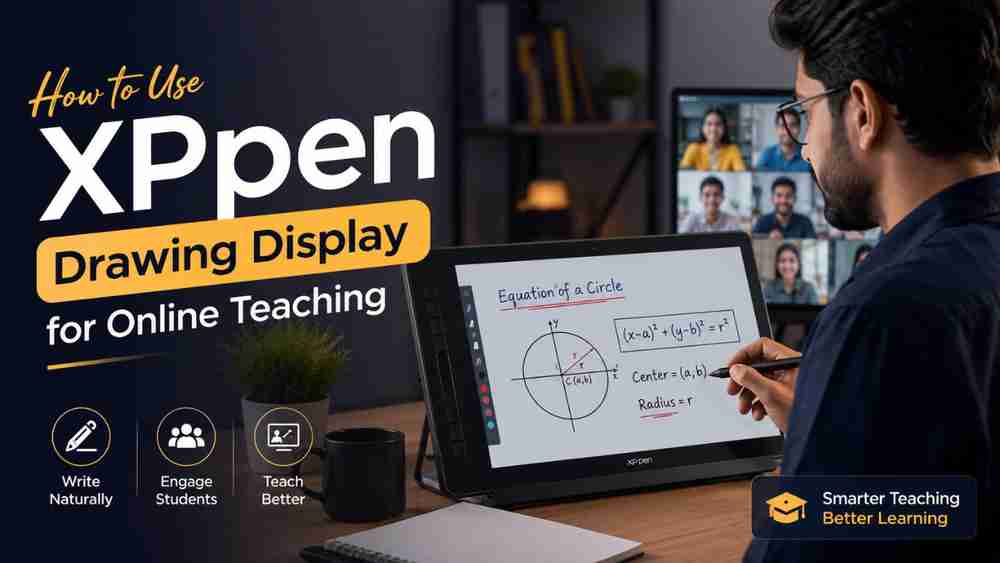
A XPPen drawing display solves this problem by allowing teachers to write directly on a screen with a stylus, just like writing on a physical whiteboard. In this guide, you will learn how to use the XPPen drawing display for online teaching, how to set it up for Zoom, Google Meet, and Microsoft Teams, and which software works best for different subjects.
What Is a XPPen Drawing Display?
A drawing display is a digital screen that lets you write or draw directly on its surface using a stylus pen.
Drawing Display vs Graphics Tablet
Feature | Drawing Display | Graphics Tablet |
Screen | Built-in display | No screen |
Writing experience | Direct on screen | Indirect |
Learning curve | Easy | Moderate |
Best for teachers | Excellent | Good |
Popular XPPen Artist Series models include:
- Artist 12 (2nd Gen) – compact and budget-friendly
- Artist 13.3 Pro – ideal for most teachers
- Artist 15.6 Pro – larger writing area
- Artist 22 Plus – best for coaching institutes and professional educators
Teachers prefer XPPen because it offers a natural handwriting experience, good display quality, and reliable performance at a competitive price.
Why Teachers Should Use a XPPen Drawing Display
Using a XPPen drawing display for teachers offers several advantages:
- Natural handwriting similar to writing on paper
- Better student engagement during live classes
- Clearer explanations for diagrams and formulas
- Faster note-taking and annotations
- Professional online class presentation
- Easy digital whiteboarding
- Improved lesson recording quality
- Paperless teaching workflow
For subjects like mathematics and science, the ability to write smoothly in real time makes a significant difference in student understanding.
What You Need Before Setting Up XPPen
Before starting, keep the following equipment ready:
- XPPen drawing display
- Laptop or desktop computer
- XPPen stylus pen
- USB-C or HDMI connection cable
- Stable internet connection (minimum 20 Mbps recommended)
- Webcam
- External microphone or headset
- Teaching software (Zoom, Google Meet, Teams, OneNote, etc.)
A dual-monitor setup is helpful but not mandatory.
Step-by-Step Guide to Set Up XPPen for Online Teaching
Step 1: Install the Latest XPPen Drivers
Visit the official XPPen website and download the latest driver for your operating system.
Tip: Remove old tablet drivers before installing new ones to avoid conflicts.
Step 2: Connect the Display Correctly
Connect the HDMI and USB cables, or use a USB-C cable if your model supports it.
Tip: Connect the display directly to the computer instead of using a low-quality USB hub.
Step 3: Calibrate the Stylus
Open the XPPen driver panel and run the calibration tool.
Tip: Tap the calibration points carefully while sitting in your normal teaching position.
Step 4: Adjust Screen Resolution
Set the display to its recommended native resolution (usually Full HD).
Tip: Match the scaling settings to 100% or 125% for accurate pen positioning.
Step 5: Configure Shortcut Keys
Assign useful shortcuts such as:
- Undo (Ctrl + Z)
- Eraser
- Pen tool
- Screenshot
- Zoom in/out
Tip: Keep the most frequently used functions on the first few buttons.
Step 6: Test Pen Pressure
Open a drawing or note-taking app and check whether the pen responds smoothly.
Tip: If the cursor appears offset, recalibrate the display.
Step 7: Open Your Teaching Software
Launch Zoom, Google Meet, or Microsoft Teams and share the application window you will write in.
Tip: Share a specific window instead of the entire screen for better privacy and performance.
Step 8: Start Teaching Confidently
Begin writing, drawing, and annotating in real time.
Tip: Practice for 15–20 minutes before your first live class to get comfortable with the stylus.
Best Software to Use with XPPen
Microsoft OneNote
Best for structured note-taking and saving class notebooks.
Microsoft Whiteboard
Great for collaborative teaching and brainstorming sessions.
OBS Studio
Best for recording lectures and creating professional teaching videos.
Zoom Whiteboard
Ideal for quick live explanations during Zoom classes.
Google Meet
Works well when combined with OneNote or OpenBoard.
Microsoft Teams
Best for schools and universities using Microsoft 365.
Google Classroom
Useful for distributing assignments and class materials.
Canva Whiteboard
Good for interactive presentations and visual lessons.
Recommended combinations:
- Math teachers: OneNote + Zoom
- Science teachers: OpenBoard + Google Meet
- Content creators: OBS Studio + XPPen
- Schools: Teams + Microsoft Whiteboard
How to Teach Different Subjects Using XPPen
Mathematics
Write equations, solve step-by-step problems, and highlight important formulas.
Physics
Draw force diagrams, circuit diagrams, and graphs with precision.
Chemistry
Write chemical equations and explain reaction mechanisms visually.
Biology
Create labeled diagrams of cells, organs, and biological processes.
Engineering
Draw technical sketches, flowcharts, and engineering diagrams.
Language Classes
Explain grammar rules, sentence structures, and handwriting practice.
Competitive Exam Preparation
Quickly annotate PDFs, solve MCQs, and explain shortcuts during live sessions.
Tips to Make Your Online Classes More Interactive
- Use multiple colors for headings and formulas.
- Zoom in on important concepts.
- Record your lessons for revision.
- Save handwritten notes as PDF files.
- Use shortcut keys to switch tools quickly.
- Combine XPPen with a webcam so students can see you while you write.
- Use digital whiteboards for collaborative activities.
- Ask students to solve problems and annotate the screen.
These small improvements can make your interactive online teaching sessions much more engaging.
Common Mistakes to Avoid
- Not updating XPPen drivers
- Poor screen calibration
- Using a weak internet connection
- Incorrect pen button settings
- Keeping a cluttered desktop during class
- Ignoring keyboard shortcuts
- Skipping software updates
- Writing with very small text that students cannot read
A clean and organized setup helps classes run smoothly.
Best XPPen Models for Teachers
Model | Display | Resolution | Best Use | Approx. Price |
Artist 12 (2nd Gen) | 11.9″ | 1920×1080 | Beginners | ₹14k–18k |
Artist 13.3 Pro | 13.3″ | 1920×1080 | Most teachers | ₹22k–28k |
Artist 15.6 Pro | 15.6″ | 1920×1080 | Professional teaching | ₹30k–38k |
Artist 22 Plus | 21.5″ | Full HD | Coaching institutes | ₹45k–60k |
Buying Recommendations
- Budget: Artist 12 (2nd Gen)
- Best value: Artist 13.3 Pro
- Professional educators: Artist 15.6 Pro
- Coaching institutes: Artist 22 Plus
Frequently Asked Questions (FAQ)
Is XPPen good for online teaching?
Yes. XPPen provides a natural writing experience and works well with Zoom, Google Meet, and Microsoft Teams.
Which XPPen model is best for teachers?
The XPPen Artist 13.3 Pro is the best balance of screen size, portability, and price for most educators.
Does XPPen work with Zoom?
Yes. You can write in OneNote, OpenBoard, or Zoom Whiteboard and share the window during your class.
Can I use XPPen with Google Meet?
Absolutely. Share your whiteboard application window in Google Meet and write in real time.
Is a drawing display better than a graphics tablet?
For teaching, yes. Writing directly on the screen feels more natural and requires less hand-eye coordination.
Do I need special software to teach with XPPen?
No. Free tools like OpenBoard and Microsoft Whiteboard are enough for most online teaching needs.
Conclusion
A XPPen drawing display can transform the way you teach online. It allows you to write naturally, explain concepts more clearly, annotate documents in real time, and create a more engaging virtual classroom experience.
If you are looking for the best drawing tablet for online teaching, the XPPen Artist Series is an excellent choice for beginners, professional teachers, and coaching institutes alike. Start with a model that fits your budget, practice using the stylus regularly, and combine it with the right software tools to deliver smooth, interactive, and professional online classes in 2026.