Introduction
As we navigate through 2026, video editing is no longer a niche skill reserved for Hollywood studios; it is a fundamental requirement for digital survival. The explosive growth of YouTube, the democratization of online education, and the rise of short-form content have made video the primary language of the internet. Whether you are a school adapting to smart classroom solutions, a digital marketing agency running campaigns, or a solo creator building a personal brand, your ability to produce high-quality video dictates your reach.
This year, the AI-powered editing revolution has completely transformed the landscape. Features that previously took hours—like rotoscoping, color matching, background removal, and audio cleanup—are now executed in seconds with a single click.
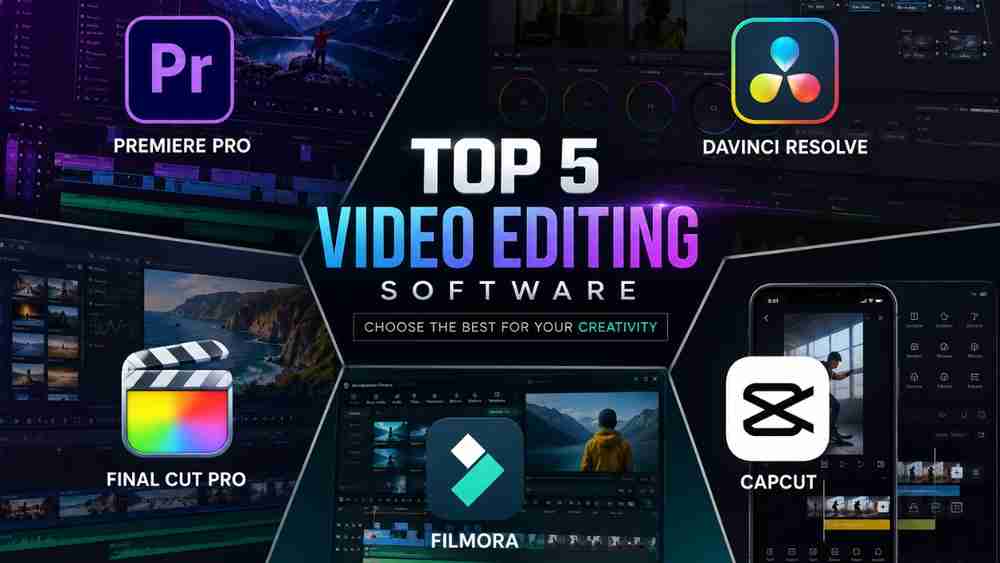
Choosing the right editing software is critical. A mismatched tool can lead to frustrating bottlenecks, wasted time, and subpar export quality. That is why users constantly compare the top five titans of the industry: Adobe Premiere Pro, DaVinci Resolve, Final Cut Pro, Wondershare Filmora, and CapCut Desktop. Each platform serves a distinct purpose, and finding your perfect match is the key to unlocking your creative potential.
What is the best video editing software in 2026?
The best video editing software in 2026 depends heavily on your specific needs and workflow. Adobe Premiere Pro remains the industry standard for collaborative professionals, DaVinci Resolve offers unmatched color grading and the best free tier, Final Cut Pro provides the most optimized experience for Mac users, while CapCut Desktop and Wondershare Filmora lead the market for beginners and social media content creators.
How We Selected These Software
To determine the best video editing software in 2026, we evaluated these platforms across a rigorous set of professional and consumer criteria:
- Performance & Rendering Speed: How efficiently the software handles 4K, 8K, and spatial video.
- AI Features: The integration of automated tasks like auto-captions, object removal, and smart reframing.
- Ease of Use & Learning Curve: The balance between intuitive design and advanced capabilities.
- GPU Optimization: How well the software utilizes system hardware for playback and export.
- User Interface: The layout, customization options, and timeline experience.
- Motion Graphics & Visual Effects: Built-in tools for titling, keyframing, and compositing.
- Audio Editing: Noise reduction, vocal enhancement, and multi-track mixing.
- Color Grading: HDR support, LUTs, and color correction precision.
- Platform Compatibility: Support for Windows 11, macOS, and cloud ecosystems.
- Pricing & Value for Money: Subscription models vs. lifetime licenses vs. free tiers.
INDIVIDUAL SOFTWARE REVIEW
1. Adobe Premiere Pro
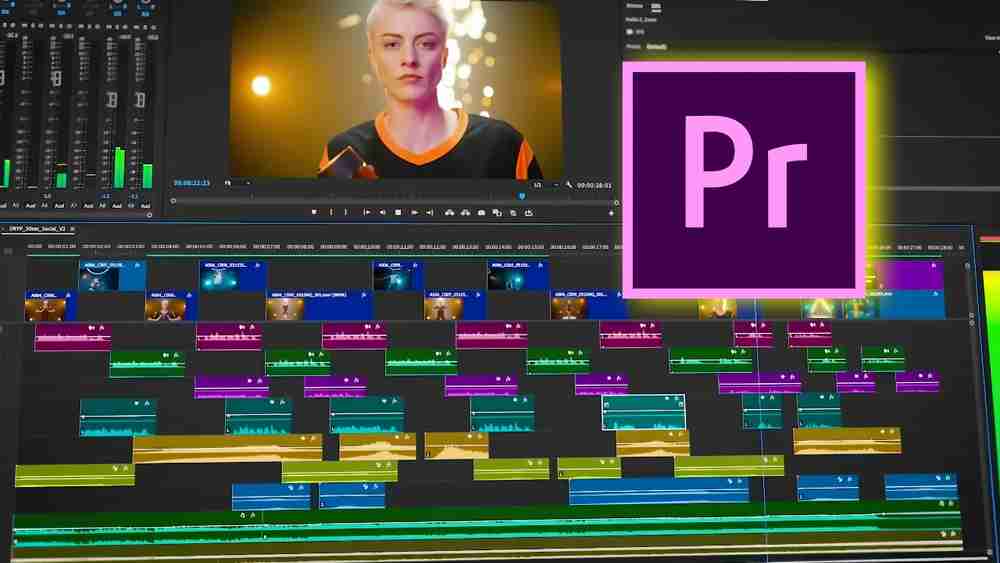
Overview: Adobe Premiere Pro is the undisputed industry standard for non-linear video editing, deeply integrated into the Adobe Creative Cloud ecosystem.
Company Background: Developed by Adobe Inc., it has been the go-to software for broadcast, filmmaking, and high-end YouTube production for over two decades.
Latest 2026 Features: Firefly generative AI integration, AI-powered Object Masks, interactive audio fades, and enhanced Text-Based Editing.
User Interface: Highly customizable, panel-based interface suited for multi-monitor setups.
AI Features: Enhance Speech, Auto-Duck, AI Audio Category Tagging, Auto Reframe, and instantaneous Object Masking.
Editing Performance: Excellent, though it demands robust hardware for heavy 4K/8K workloads.
Timeline Experience: The magnetic-free, track-based timeline offers ultimate control for complex layering.
Motion Graphics: Seamless Dynamic Link with After Effects.
Audio Editing: Advanced integration with Adobe Audition, plus new AI-driven dialogue cleanup.
Color Grading: Lumetri Color panel provides professional-grade scopes and curve adjustments.
Supported Platforms & System Requirements: Windows 11 and macOS. Requires a powerful CPU, 16GB+ RAM (32GB recommended), and a dedicated GPU.
Pricing: Subscription-only (approx. $22.99/month).
Advantages: Unmatched ecosystem integration, industry-standard workflow, cutting-edge AI tools.
Limitations: Subscription fatigue, steep learning curve, resource-heavy.
Best For: Professional Editors, Corporate Teams, Marketing Agencies, Documentary Filmmakers.
Expert Rating: 4.8/5
Final Verdict: The best choice if you are working in collaborative professional environments or heavily rely on After Effects and Photoshop.
2. DaVinci Resolve
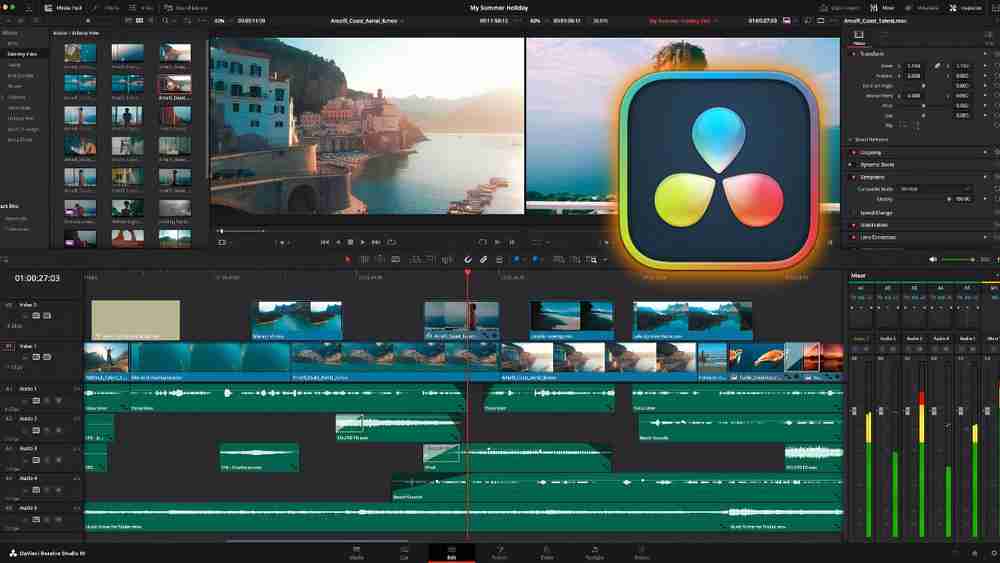
Overview: Initially a high-end color grading tool, Resolve has evolved into a powerhouse all-in-one post-production suite.
Company Background: Acquired and developed by Blackmagic Design.
Latest 2026 Features: Apple Immersive Video support, new Photo page for Hollywood-grade still editing, and AI Face Reshaper.
User Interface: Page-based workflow (Media, Cut, Edit, Fusion, Color, Fairlight, Deliver) which keeps tasks organized.
AI Features: Neural Engine powers AI Magic Mask, Voice Isolation, IntelliSearch, and Auto-Subtitle generation.
Editing Performance: Outstanding GPU optimization makes it incredibly stable and fast.
Timeline Experience: The "Cut" page is built for speed, while the "Edit" page handles traditional complex timelines.
Motion Graphics: Built-in Fusion workspace for Hollywood-level node-based VFX.
Audio Editing: Built-in Fairlight workspace for professional audio post-production.
Color Grading: The absolute best in the industry; unmatched node-based color correction.
Supported Platforms & System Requirements: Windows, macOS, Linux. Heavily GPU-reliant.
Pricing: Incredible Free Version; Studio version is a one-time $295 lifetime fee.
Advantages: Best-in-class color and audio, true lifetime license, incredible free version.
Limitations: Fusion (VFX) has a very steep learning curve compared to layer-based tools.
Best For: Colorists, Indie Filmmakers, Budget-conscious Professionals, YouTubers.
Expert Rating: 4.9/5
Final Verdict: The undisputed king of value for money and professional color grading.
3. Final Cut Pro
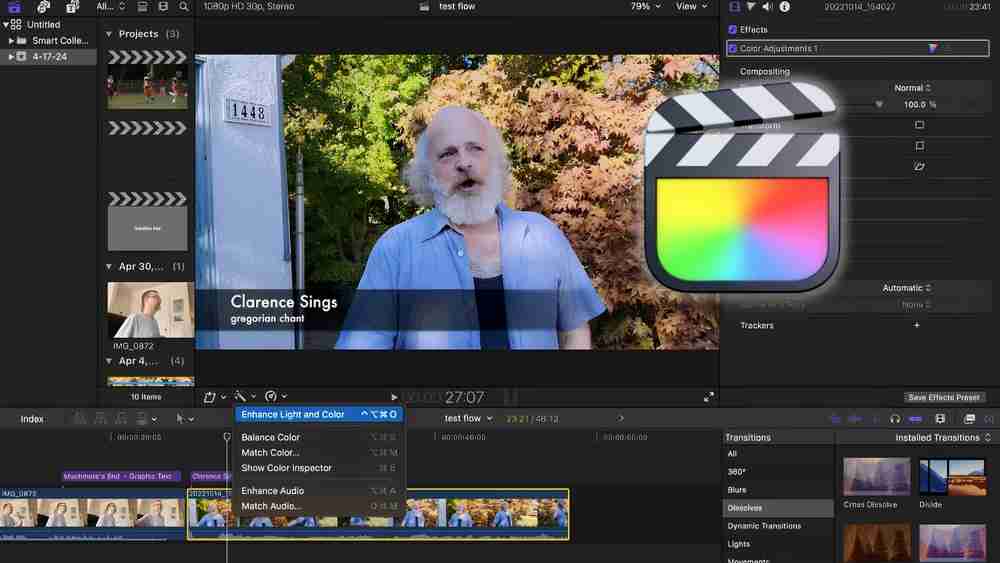
Overview: Apple's proprietary professional video editing software, optimized exclusively for Mac hardware.
Company Background: Developed by Apple Inc.
Latest 2026 Features: Spatial Video Editing for Apple Vision Pro, Magnetic Mask (AI isolation without green screens), and Transcribe to Captions.
User Interface: Clean, intuitive, and modern, designed specifically to feel native to macOS.
AI Features: Machine learning-powered Smart Conform, Enhance Light and Color, and Smooth Slo-Mo.
Editing Performance: Unrivaled on Apple Silicon (M1/M2/M3/M4 chips) with buttery smooth 4K/8K playback.
Timeline Experience: The Magnetic Timeline is controversial among traditionalists but beloved by rapid content creators for preventing sync issues.
Motion Graphics: Integrates perfectly with Apple Motion.
Audio Editing: Solid built-in tools with Voice Isolation.
Color Grading: Excellent color wheels and HDR workflows, though less granular than Resolve.
Supported Platforms & System Requirements: macOS and iPadOS exclusively.
Pricing: One-time $299.99 lifetime license.
Advantages: Blazing fast rendering on Macs, one-time fee, highly intuitive timeline.
Limitations: Mac only; magnetic timeline isn't for everyone.
Best For: Mac Users, YouTubers, Wedding Videographers, Content Creators.
Expert Rating: 4.7/5
Final Verdict: The absolute best video editing software for Mac users seeking a balance of speed, power, and optimization.
4. Wondershare Filmora
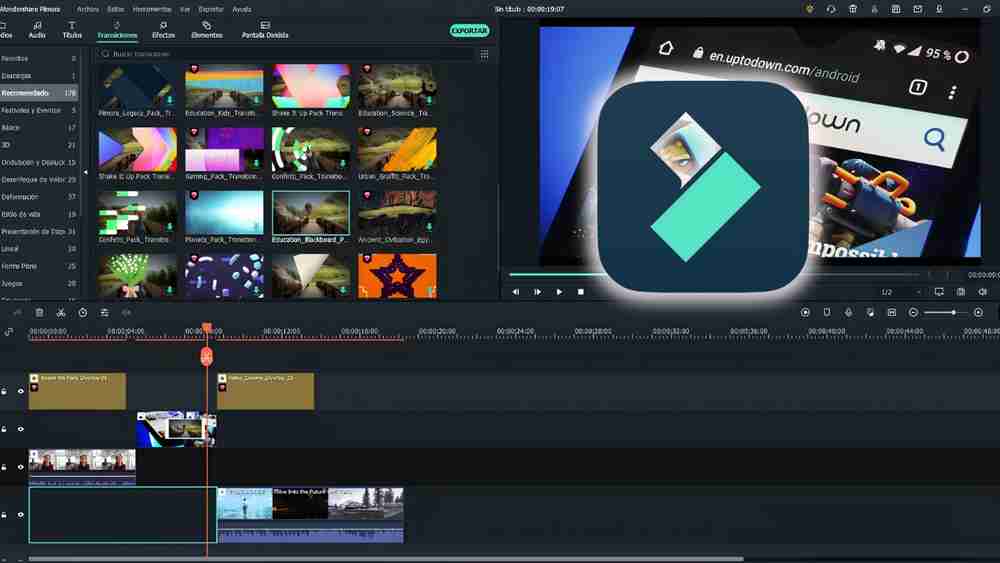
Overview: A highly accessible, feature-rich editor that bridges the gap between basic movie makers and professional suites.
Company Background: Developed by Wondershare, focused on empowering everyday creators.
Latest 2026 Features: Multi-camera editing, AI Audio to Video, AI Mate Editing, and Dual-Timeline Editing.
User Interface: Extremely user-friendly with drag-and-drop simplicity.
AI Features: AI Copywriting, AI Portrait Cutout, AI Audio Enhancer, and Text-Based Editing.
Editing Performance: Lightweight and responsive on standard PCs and laptops.
Timeline Experience: Traditional track-based timeline simplified for beginners.
Motion Graphics: Massive library of pre-built templates, animated charts, and text effects.
Audio Editing: Auto Beat Sync, Silence Detection, and AI Denoise.
Color Grading: Basic LUT support and easy color matching.
Supported Platforms & System Requirements: Windows, macOS, iOS, Android. Very forgiving system requirements.
Pricing: Subscription ($49.99/year) or Perpetual License (approx. $79.99).
Advantages: Extremely easy to learn, massive asset library, great AI helper tools.
Limitations: Lacks advanced professional routing and high-end compositing.
Best For: Beginners, Teachers, Small Businesses, Social Media Creators.
Expert Rating: 4.5/5
Final Verdict: The perfect stepping stone for beginners who need quick, flashy results without an overwhelming interface.
5. CapCut Desktop
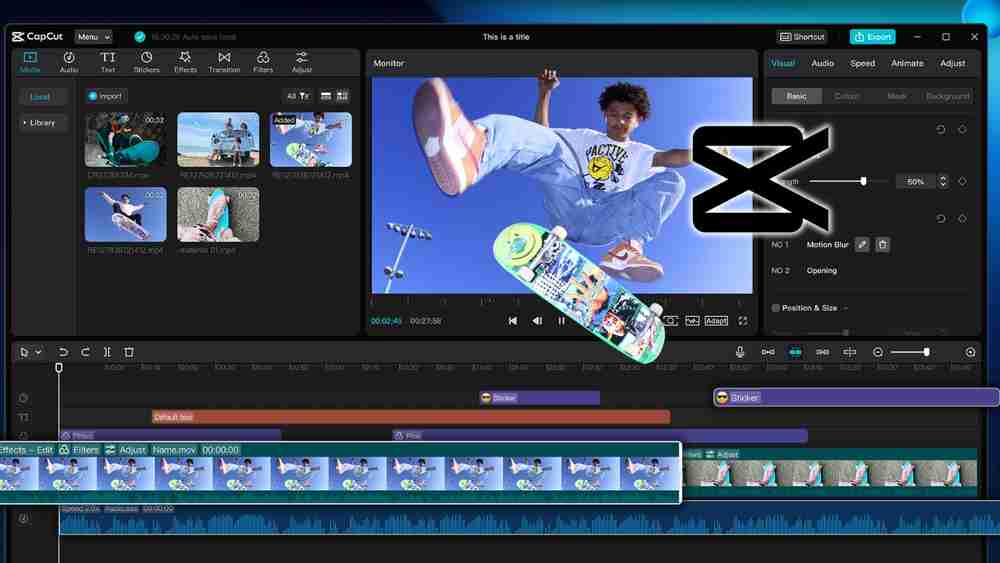
Overview: Initially a mobile app, CapCut Desktop has exploded into a wildly popular, AI-driven desktop editor tailored for short-form content.
Company Background: Developed by ByteDance (the parent company of TikTok).
Latest 2026 Features: AI Auto-Edit (narrative assembly), AI Effect Engine, and real-time cloud processing.
User Interface: Minimalist, trendy, and optimized for vertical video formats.
AI Features: The best auto-captions in the business, AI visual scene analysis, smart background removal, and AI avatars.
Editing Performance: Runs surprisingly well on modest hardware; leverages cloud computing for heavy AI tasks.
Timeline Experience: Snappy and straightforward, heavily focused on rapid assembly.
Motion Graphics: Endless trendy transitions, effects, and stickers directly tied to social media trends.
Audio Editing: Incredible library of royalty-free trending music and sound effects.
Color Grading: Basic but effective filters.
Supported Platforms & System Requirements: Windows, macOS, Web. Low system requirements.
Pricing: Free core version; CapCut Pro is approx. $9.99/month.
Advantages: Best for short-form video, incredible auto-captions, highly accessible, trendy effects.
Limitations: Not suited for long-form documentary or complex multi-cam broadcast editing.
Best For: Instagram Creators, TikTokers, YouTubers (Shorts), Beginners.
Expert Rating: 4.6/5
Final Verdict: The absolute king of social media content creation and fast, AI-driven editing.
COMPLETE COMPARISON TABLE
Feature | Premiere Pro | DaVinci Resolve | Final Cut Pro | Filmora | CapCut Desktop |
Windows Support | Yes | Yes | No | Yes | Yes |
macOS Support | Yes | Yes | Yes | Yes | Yes |
Free Version | No (Trial only) | Yes (Extensive) | No (Trial only) | Yes (Watermarked) | Yes (Highly capable) |
Paid Version | Subscription | Lifetime | Lifetime | Sub/Lifetime | Subscription |
AI Editing | Advanced | Advanced | Advanced | Excellent | Outstanding |
Auto Captions | Yes (Built-in) | Yes (Studio only) | Yes | Yes | Yes (Industry Best) |
Background Removal | Yes | Yes | Yes | Yes | Yes |
Motion Graphics | After Effects Link | Fusion (Built-in) | Apple Motion Link | Templates | Templates |
Color Grading | Excellent | Industry Leading | Great | Basic | Basic |
Audio Editing | Advanced (Audition) | Advanced (Fairlight) | Solid | Automated | Automated |
Multi-Camera | Yes | Yes | Yes | Yes | No |
Proxy Workflow | Yes | Yes | Yes | Yes | Yes |
Cloud Collaboration | Frame.io | Blackmagic Cloud | Limited | Wondershare Drive | ByteDance Cloud |
Export Speed | Fast | Very Fast | Blazing (Mac) | Fast | Very Fast |
GPU Acceleration | Yes | Heavy Optimization | Metal Optimization | Yes | Cloud/Local Hybrid |
4K/8K Support | Yes | Yes | Yes | Yes (4K primarily) | Yes (4K primarily) |
Plugin Support | Massive | Excellent (OFX) | Great | Minimal | Minimal |
Learning Curve | Steep | Steep | Moderate | Very Easy | Very Easy |
FEATURE-BY-FEATURE COMPARISON
User Interface & Timeline
- Premiere Pro: Deeply customizable track timeline.
- DaVinci Resolve: Page-based workflow keeps tasks distinct.
- Final Cut Pro: Magnetic timeline is revolutionary for speed.
- Filmora: Drag-and-drop simplicity.
- CapCut: Streamlined for rapid, short-form editing.
- Winner: Final Cut Pro (for speed) / Filmora (for simplicity).
- Practical Benefit: A UI that matches your skill level prevents frustration and speeds up your delivery times.
AI Editing & Subtitle Generation
- Premiere Pro: Great text-based editing.
- DaVinci Resolve: Powerful neural engine tools.
- Final Cut Pro: Seamless Apple Intelligence integration.
- Filmora: Fun, generative AI tools.
- CapCut: Phenomenal scene analysis and unmatched auto-captions.
- Winner: CapCut Desktop.
- Practical Benefit: Saves hours of manual transcription and formatting for social media.
Performance, Rendering Speed & GPU
- Premiere Pro: Reliable but resource-heavy.
- DaVinci Resolve: Incredible utilization of modern GPUs.
- Final Cut Pro: Unbeatable on Apple Silicon Macs.
- Filmora: Runs well on low-end hardware.
- CapCut: Cloud-hybrid rendering keeps it snappy.
- Winner: Final Cut Pro (Mac) / DaVinci Resolve (PC).
- Practical Benefit: Faster exports mean you can publish content quicker and handle client revisions without lag.
Color Grading & Audio Editing
- Premiere Pro: Lumetri and Audition are top-tier.
- DaVinci Resolve: Node-based color and Fairlight audio are Hollywood standards.
- Final Cut Pro: Intuitive but less granular.
- Winner: DaVinci Resolve.
- Practical Benefit: Achieve cinematic aesthetics and broadcast-quality sound without leaving the software.
PRICE COMPARISON
Prices are approximate and may vary depending on region, taxes, promotions, exchange rates, and subscription plans.
Software | Free Version | Monthly Price | Annual Price | Lifetime Price | Student / Enterprise |
Adobe Premiere Pro | 7-Day Trial | ~$22.99 | ~$263.88 | N/A | Discounted CC All Apps / Custom |
DaVinci Resolve | Yes (Feature-rich) | N/A | N/A | $295 (Studio) | N/A (One price fits all) |
Final Cut Pro | 90-Day Trial | N/A | N/A | $299.99 | Pro Apps Bundle for Education |
Filmora | Yes (Watermarked) | N/A | ~$49.99 | ~$79.99 | Education Pricing Available |
CapCut Desktop | Yes (Excellent) | ~$9.99 (Pro) | ~$89.99 (Pro) | N/A | N/A |
PROS & CONS
Adobe Premiere Pro
Pros | Cons |
Industry-standard workflow | Expensive continuous subscription |
Incredible Adobe ecosystem integration | High system requirements |
Advanced text-based AI editing | Can be prone to crashes on older hardware |
DaVinci Resolve
Pros | Cons |
Unbeatable free version | Node-based workflow has a steep learning curve |
Best color grading in the world | Heavy reliance on GPU power |
One-time fee for Studio version | UI can feel cluttered for simple edits |
Final Cut Pro
Pros | Cons |
Blazing fast on Apple Silicon Macs | Only available on Apple devices |
No subscription (One-time fee) | Magnetic timeline frustrates traditional editors |
Excellent background rendering | Limited third-party plugin ecosystem compared to Adobe |
Wondershare Filmora
Pros | Cons |
Incredibly easy for beginners to learn | Free version has a massive watermark |
Huge library of built-in assets/templates | Color grading is very basic |
Runs smoothly on average laptops | Not suited for high-end professional filmmaking |
CapCut Desktop
Pros | Cons |
The best auto-captions on the market | Requires constant internet for cloud AI features |
Free version is highly capable | Limited multi-track audio and color control |
Perfect for trendy short-form content | UI is strictly geared toward social media formats |
WHICH SOFTWARE SHOULD YOU BUY?
- Beginners: CapCut Desktop or Filmora. Start editing immediately with zero prior experience.
- Students: DaVinci Resolve (Free). Learn professional skills without spending a dime.
- Teachers & Online Educators: Filmora. Screen recording and easy presentation tools.
- Schools & Coaching Institutes: DaVinci Resolve (for media labs) or Filmora (for teacher use).
- YouTubers (Long-form): Final Cut Pro (Mac) or Premiere Pro (PC). Perfect balance of speed and power.
- Instagram & TikTok Creators: CapCut Desktop. Native aspect ratios and trending effects.
- Podcast Creators: Premiere Pro. The AI text-based editing makes cutting hour-long podcasts easy.
- Marketing Agencies & Businesses: Premiere Pro. Easy sharing with Frame.io and Adobe Creative Cloud.
- Professional Editors & Corporate Teams: Premiere Pro. The industry standard for collaborative workflows.
- Wedding Editors: Final Cut Pro. Churn out massive 4K multi-cam timelines quickly.
- Documentary Filmmakers: DaVinci Resolve. Superior color correction and media management.
WHY CHOOSE EDUMARK TECHNOLOGIES?
Creating great video requires more than just software—it requires the right hardware and environment. Edumark Technologies is your trusted technology partner for end-to-end digital content creation solutions. We don't just sell products; we build complete ecosystems.
FREQUENTLY ASKED QUESTIONS
1. Which is the best video editing software in 2026?
It depends on your needs. Premiere Pro is best for professionals, DaVinci Resolve is best for value and color, Final Cut Pro is best for Mac, and CapCut is best for social media.
2. Is Premiere Pro better than DaVinci Resolve?
Premiere is better for motion graphics integration (After Effects) and general agency collaboration. Resolve is better for color grading, audio, and offers a much better pricing model (no subscription).
3. Is Filmora good for beginners?
Yes, Filmora is specifically designed for beginners, featuring an intuitive drag-and-drop interface and plenty of automated templates.
4. Is CapCut Desktop free?
Yes, CapCut offers a highly capable free version. The "Pro" version unlocks advanced AI features and premium effects.
5. Is Final Cut Pro only for Mac?
Yes, Final Cut Pro is exclusively available on macOS and iPadOS.
6. Which editor is best for YouTube?
For standard long-form YouTube videos, Final Cut Pro (Mac) or Premiere Pro (PC) are ideal. For YouTube Shorts, CapCut Desktop is superior.
7. Which editor is best for teachers?
Wondershare Filmora is excellent for teachers due to its built-in screen recording, easy text tools, and gentle learning curve.
8. Which software has the best AI features?
CapCut leads in AI automation for social media, while Premiere Pro leads in AI utility (text-based editing, object masking).
9. Which editor offers the best value for money?
DaVinci Resolve. The free version is incredibly powerful, and the Studio version is a single lifetime payment of $295.
10. Which software is best for professionals?
Adobe Premiere Pro and DaVinci Resolve dominate the professional filmmaking and broadcast industries.
FINAL VERDICT
- Best Overall: Adobe Premiere Pro
- Best Professional Editor: DaVinci Resolve
- Best Free Editor: DaVinci Resolve (Free Version)
- Best Beginner Software: Wondershare Filmora
- Best AI Video Editor: CapCut Desktop
- Best for Mac Users: Final Cut Pro
- Best for Windows Users: Adobe Premiere Pro
- Best Budget Choice: CapCut Desktop
- Best Value for Money: DaVinci Resolve Studio
CALL TO ACTION
Ready to upgrade your content creation game? Stop worrying about hardware bottlenecks and let the experts handle your studio setup.
Edumark Technologies provides complete, customized setups for professional video editing, podcasting, and smart classrooms. We deliver end-to-end solutions tailored to your specific software and workflow needs.
📞 Contact Number: +918002805461
🌐 Website: www.edumarktechnologies.com
📧 Email: info@edumarktechnologies.com
📍 Service Area: PAN India Service
Book a Free Consultation, request a Live Demo, and receive a Customized Quote today!